Environment and the run settings
These tabs are forms. A field is checked when you press Enter or leave it. A wrong value turns red, a message says why, and nothing is written until it is fixed. A form changes only its own part of the model file, and each change is one step you can undo.
Environment
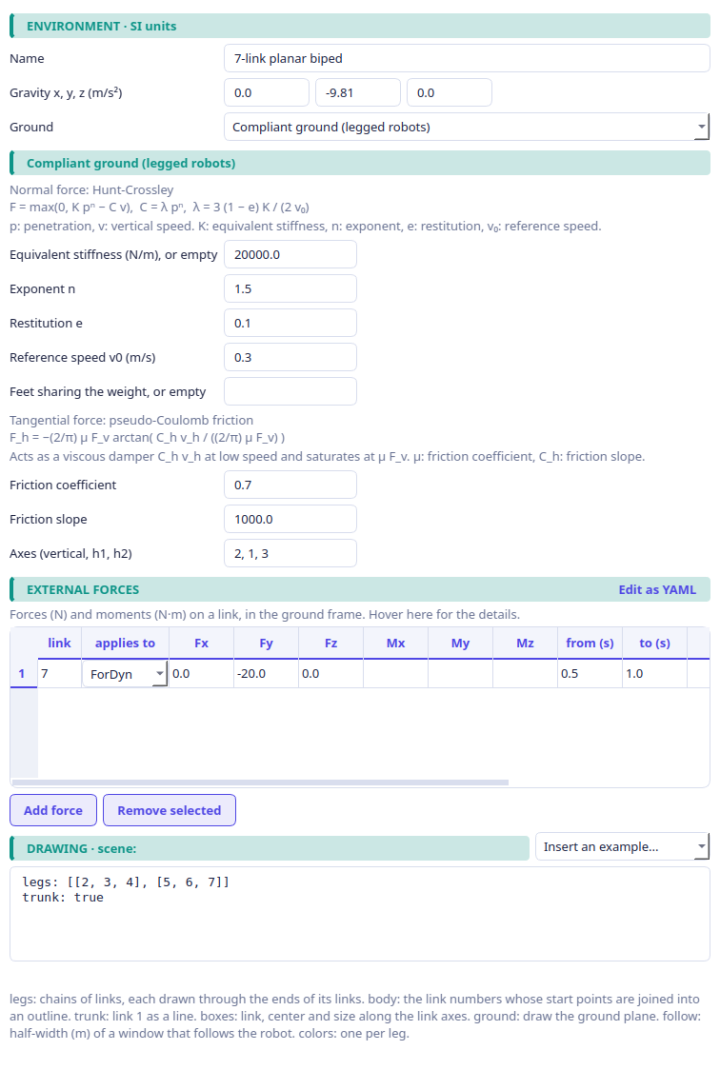
- Name and Gravity (x, y, z, m/s²). Gravity is a vector in the inertial frame: for the
Moon on the biped, set
yto-1.62; a space robot has0, 0, 0. - Ground:
- No ground (free-floating robot): a space robot, or a robot with wheels, which then roll
on the plane given by
wheel_axesin the file. -
Compliant ground: a contact point of a link below the ground plane feels a vertical force from the contact model and friction along the ground. Two contact models:
- Hunt-Crossley (the bundled biped, quadruped, Spot and hexapod): the force is zero at touchdown and never pulls. The fields are the stiffness K (N/m^n), or, instead, the equivalent stiffness (the linear spring in N/m to match at the static load; give one of the two), the exponent n (1 a linear spring, 1.5 Hertzian), the restitution e and the reference speed v0 (the impact speed at which e applies), and the number of feet sharing the weight (empty: counted from the robot).
- Original (spring-damper, MATLAB) (the
_matlabmodels): the stiffness K, the damping factor (the damping as a multiple of the critical damping of the whole robot on that spring), the damping ratio per foot, or the damping C itself (give one of the three, not several), the rebound speed, an optional damping ramp (a depth in metres over which the damping builds up at touchdown) and the feet.
Both have the friction coefficient and friction slope, and the axes: the numbers of the inertial axes that are vertical, horizontal 1 and horizontal 2 (
2, 1, 3means y is up). Fields the chosen contact model does not use are greyed out and are not written to the file.
A stiffer ground makes a more rigid contact but a stiffer problem to solve: use the ode15s
solver for a robot that walks.
- Wheel plane axes (no ground). A wheeled robot rolls on a flat plane. With a compliant
ground it is the plane of the ground; with No ground it is the plane given here, as the
inertial axis numbers vertical, horizontal 1, horizontal 2 (
2, 1, 3is the default, y up). The field is active only when there is no ground. It is thewheel_axesof the file.
External forces
The EXTERNAL FORCES table adds forces and moments that act on links: a weight hanging from a tip, a push for half a second, a thruster fixed in a link. It is the same table as in the fixed-base window.
| column | meaning |
|---|---|
link |
the link the force acts on (1 is the trunk) |
applies to |
both, ForDyn (forward dynamics only) or InvDyn (inverse dynamics only) |
Fx, Fy, Fz |
the force (N) |
Mx, My, Mz |
the moment (N m) |
from (s), to (s) |
the force acts only from this time to that time; empty for always |
px, py, pz |
where the force acts, in the frame of the link (default: the link's origin) |
frame |
ground: force and moment keep their direction in space (the inertial frame). link: they turn with the link, as a thruster does |
Add force adds a row and Remove selected removes the chosen rows. A wrong cell turns
red and a message says why (for example link must be a whole number from 1 to 5, or 'from'
must be less than 'to'), and nothing is written until it is fixed. A valid edit is written
into the external: part of the fordyn: and invdyn: blocks (both, for a force that applies
to both runs) as one step you can undo.
- A model without inverse dynamics (or forward dynamics) settings has no block to put the force in: it is written to the other run only, and a note under the table says so.
- In inverse dynamics the torques found are those besides the external forces.
- Edit as YAML shows the same forces as text, for anything the table has no column for. A
force given by your own Python function (
custom) opens that way. The GUI does not run it; use the command line.
The drawing (scene)
The DRAWING editor at the bottom of the Environment tab is the scene: part of the file:
how the Model tab and the animation draw the robot. It works like the
other editors (it applies while you type, once valid, as one undo step; a mistake turns it red
with the package's message).
legs: chains of link numbers, each drawn as a line through the ends of its links.body: link numbers whose start points are joined into an outline (the trunk of a walking robot).trunk: truedraws link 1 as a line.boxes: boxes on a link, each{link, center, size}with the size along the link axes (the chassis of the Pioneer).ground: falseleaves out the ground plane (a robot in space).follow: wkeeps a window of half-widthwmetres on a robot that travels far.colors: one colour for each leg.- Insert an example... offers legs and trunk and legs and body outline (made from the links of this model), trunk as a box, and space robot (no ground).
- An empty editor means no scene: the default drawing, every leg as a chain of links. The base box and the joint skeleton of the Model tab are drawn in addition to either.
Forward dynamics and Inverse dynamics
The ForDyn and InvDyn tabs hold the settings of the two runs.
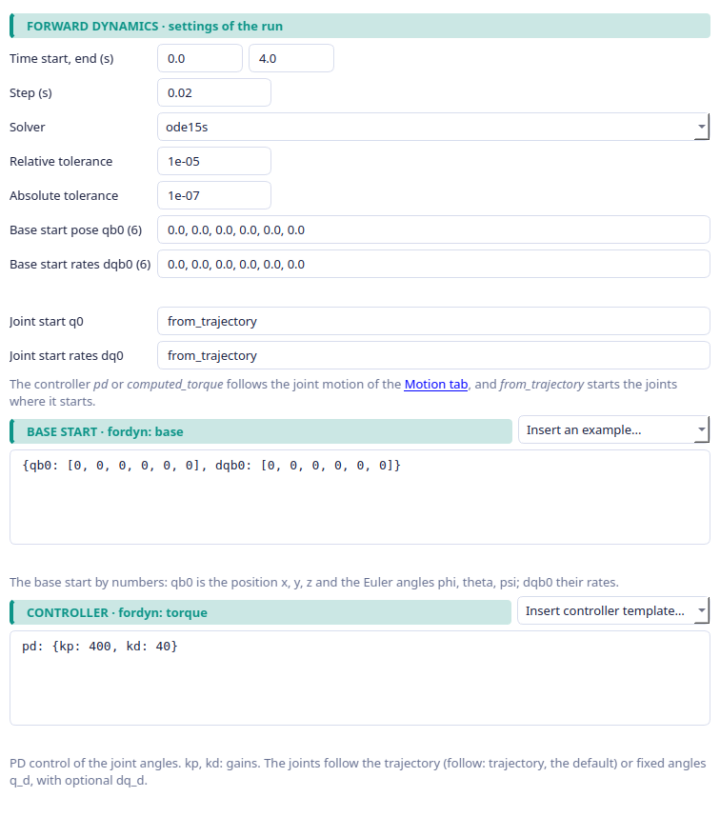
| field | meaning |
|---|---|
| Time start, end | the first and last time of the run (s) |
| Step | the time between the points that are stored and plotted (s) |
| Solver | ode45 (explicit), ode15s (for stiff problems: legged robots on the ground) or ode5 (fixed step) |
| Relative / Absolute tolerance | the accuracy the solver aims for |
Base start pose qb0, rates dqb0 |
the base at the start: position x, y, z and the Euler angles phi, theta, psi, and their rates (6 numbers each) |
Joint start q0, dq0 (forward dynamics) |
the joint angles and rates at the start: numbers, one for each joint, or the word from_trajectory to start where the joint motion starts |
- Forward dynamics needs a way to drive the joints: the Controller under the fields of the ForDyn tab, described below. With none, the joints are free.
- Inverse dynamics follows a joint motion and finds the torques. The motion is set in the Motion tab. The InvDyn tab offers Add inverse dynamics settings when the model has none; that needs a motion first, and the tab says so when it is missing.
- A model without a
fordyn:orinvdyn:part shows a button that adds one with usable settings. - When the base start is not plain numbers, for example a gait (
from_gait) as in the walking robots, the two fields are greyed and say so. The BASE START editor below them is the way to change it (next section).
The base start (BASE START editor)
Under the fields of both the ForDyn and the InvDyn tab, the BASE START editor shows the
base: entry of that run, as it is written in the file. It takes every form the package knows,
and it works like the controller and the
motion editors: it applies while you type once the text is valid, the
package checks it, a mistake turns the box red with the package's message and nothing is
written, and it is one step you can undo. The plain fields above it follow it, and
it follows them.
| form | what it is |
|---|---|
qb0, dqb0 |
the position x, y, z and the Euler angles phi, theta, psi (6 numbers), and their rates |
from_gait: {axes: [x, z, y], offset: [...]} |
taken from the walking motion in the Motion tab; axes maps the gait's x, y, z to the robot's axes, offset is added to the position. With euler and euler_rate for the attitude and its rate. Only for a robot with a gait |
attitude: euler_parameters with a 7-value qb0 |
the attitude simulated with Euler parameters (no singularity at theta = 90°); the four parameters must have norm 1 |
Insert an example... offers one of each. The base start is required, so the editor cannot be emptied: the box says so.
The controller (ForDyn tab)
The Controller is the fordyn: torque: part of the file, shown as a small text editor
under the run settings. It holds just that block, as it is written in the file, comments
included.
- It applies while you type, a moment after you stop, and only when it is valid. It is then written into the model as one step you can undo.
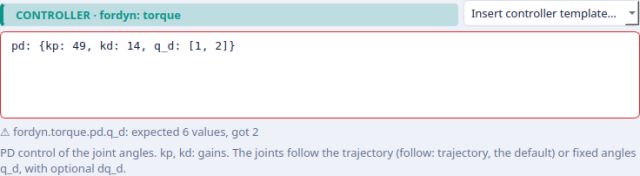
- The package itself checks it. A wrong key, a wrong number of values (for example
q_dwith two angles for four joints), a missing trajectory to follow, or a controller that is not valid YAML turns the box red with the message under it, and nothing is written.
- Insert controller template… shows controller templates that fit the current robot and run
settings. For example, Pioneer offers
diff_drive, and the four-wheel car offerscar_drive. Selecting a template replaces the controller text. - An empty editor removes the controller: the joints move freely, the same as
free. - A
customcontroller (your own Python function) is not run by the GUI; use the command line.
The note under the editor says what the keys of the chosen kind mean. See The model file for the list of controllers and the trajectory they follow.
Next: The Motion tab.