The Motion tab: what the joints do
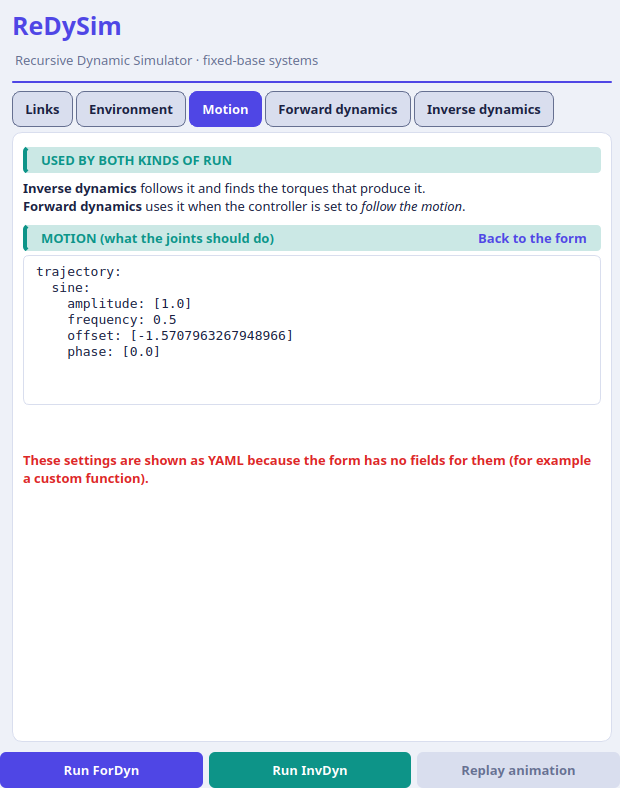
The Motion is the motion of the joints. Both kinds of run use it:
- Inverse dynamics follows it and finds the forces at the joints that produce it (Inverse dynamics).
- Forward dynamics uses it when the controller is set to Follow the motion: the joints
are then driven towards it (Forward dynamics). A controller can instead
hold fixed positions
q_d, and then the motion is not used.
The Forward dynamics and Inverse dynamics tabs each say so under their fields, with a link to this tab.
The motion is saved with the inverse dynamics settings
In the model file the motion is stored inside invdyn:. A model needs the inverse dynamics
settings to hold a motion. With Include inverse dynamics in this model switched off (see the
Inverse dynamics tab), this tab is greyed out and says so, with a button, Include inverse
dynamics, that switches them on. Press it to give a forward-dynamics-only model a motion for
its controller to follow. It is one step you can undo.
The types of motion
| motion | what the joints do | fields |
|---|---|---|
| Cycloidal | a smooth move from q0 to qf, at rest at both ends |
q0, qf |
| Quintic | like cycloidal, with zero acceleration at both ends too | q0, qf |
| Trapezoidal | speed up, cruise, slow down | q0, qf, accel_fraction (the share of the time spent speeding up, above 0 up to 0.5) |
| Sine | offset + amplitude sin(2 pi frequency t + phase), frequency in hertz |
amplitude, frequency, offset, phase |
| Constant speed | every joint turns at one speed | rpm |
| Waypoints | passes through a list of poses, stopping at each | points (one pose per line), durations |
| Task pose | moves a tool in a straight line while rotating it | start_joints, move, axis, angle |
| Task circle | moves a planar target around a circle | center, radius, speed, phase, angle (when the target uses one) |
The motion selector offers the task pose or circle form when the model has a compatible task target.
For the task pose and circle examples, the form edits the path while keeping the task target and
inverse-kinematics starting guess. Use Edit as YAML to change those task settings or to enter
a custom task path. Task poses specified by position and rotvec also open as YAML.
When you switch on inverse dynamics for a robot that has none, the motion starts from the model's own start pose and moves a little (1 rad for a revolute joint, 0.2 m for a prismatic one).
Closed loops: start where the loop can close
In a closed loop only the motors get a motion. The passive joints are then found from the requirement that the loop stays closed, starting from the model's start pose. Two things follow:
- Give the motion for the motors only (the form expects one value per motor).
- Start the motion near the start pose. The form shows the motor values there. Far from it the loop may be closed in a different assembly (for example folded, with a rod that does not move), or not at all. After a run, the Messages tab warns when the passive joints begin far from the start pose.
For example, a slider-crank with its crank at 0 rad cannot reach its rail, so the solver returns a folded pose in which only the crank moves. Starting at the model's own crank angle (-1.571 rad) gives the whole mechanism in motion.
If a value is wrong, it turns red and a message says why. Run then shows this tab, so that you see which field it is.
If you edit the file by hand
time [t0, tf] and step are flat keys under invdyn:. The motion type becomes a key
under invdyn: trajectory: named for it (cycloidal, quintic, trapezoidal, sine,
constant_speed, or waypoints), and q0, qf, accel_fraction, amplitude, frequency,
offset, phase, rpm, points, durations are settings nested under that key. For example:
invdyn:
  time: [0, 2]
  trajectory:
    quintic: {q0: [0, 0], qf: [1.0, 0.5]}
The full list of motions and their settings is in the command-line manual's Trajectories section.